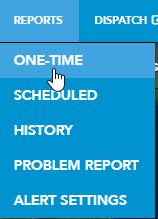
| 1. Select One Time from the Reports drop-down menu.
|
 |
|
| 2. Select the type of activity you would like to report.
|
 |
|
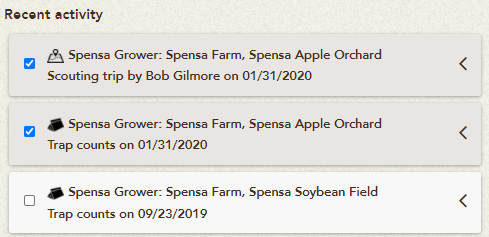
| 3. Activities will appear under Recent Activity. Click the checkbox next to each activity you would like to include in the report. Once selected, the items will appear under Activity to report.
|
 |
|
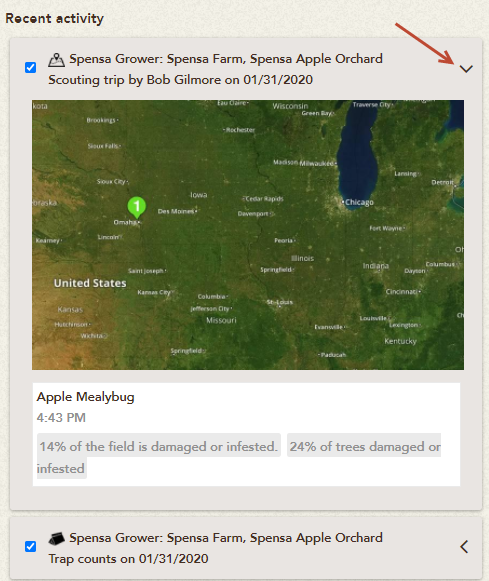
| 4. Click the arrows for each activity to preview the report information before selecting.
|
 |
|
| 5. When finished selecting, click the Next button.
|
 |
|
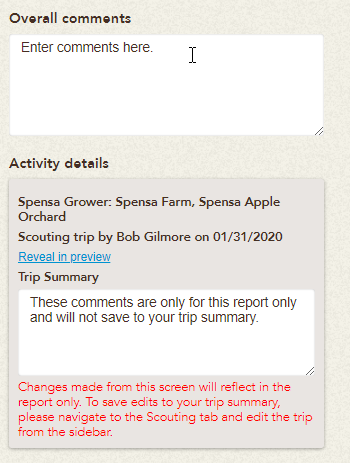
| 6. Customize the report by adding overall comments and individual trip comments in the appropriate textboxes. These comments will appear in the report.
|
 |
|
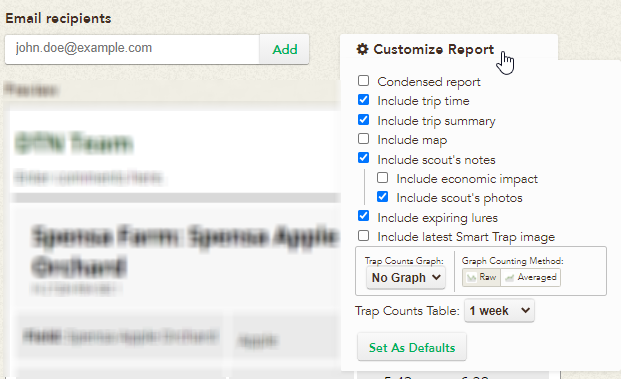
| 7. Add email recipients by typing in the email address and clicking Add.
8. Add features to include in the report by clicking Customize Report.
|
 |
|
| 9. Email the report by clicking Send Report.
|
 |
|
| 10. You will see a message that states “Report Sent Successfully” when the report has been sent.
|
 |