Open the AP mobile app and select a field, if one is not already selected.
- Select the Traps tab at the bottom
- Tap the + button in the lower right
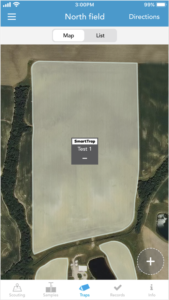
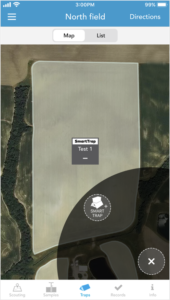
- Tap the + Smart Trap button that appears
- Scan or search for the serial number of the trap you are deploying
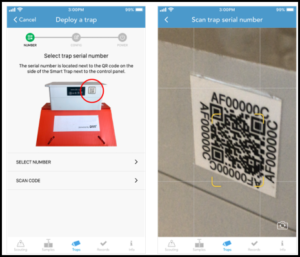
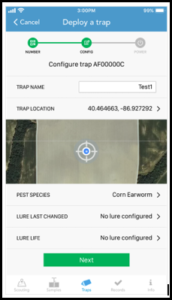
- Name the trap, adjust the location (if needed), select species, and configure lure.
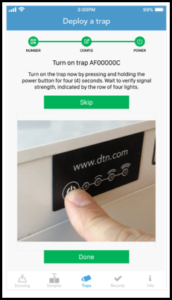
- When prompted, turn off the Smart Trap by holding down the power button for 4 seconds.
- The lights should begin to chase back and forth in search of a signal and will eventually light solid indicating the acquired signal strength.
- The lights will then turn off and you can tap Done.
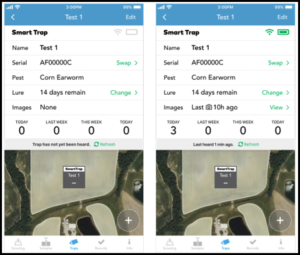
- Verify the app indicates the trap has connected. If the gray bar states “Trap has not yet been heard”, try tapping Refresh to check again.
- Once the status is indicated, with a strong signal and battery, you can walk away from the field.
If the app does not indicate recent trap connectivity and you have cell reception on your device, please contact DTN support with your serial number handy.