When a new season is about to begin, you can initiate one in DTN AP by following the steps below.
| 1. Click on the Season tool from Account->Seasons. | 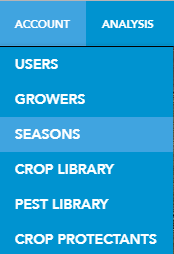 |
There are three steps to the Seasons tool: Source/Destination, Data Types, and Fields.
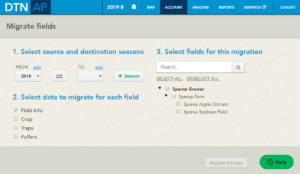
| 2. Select the Source Season (From) and the Destination Season (To). | 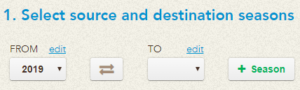 |
| 2b.
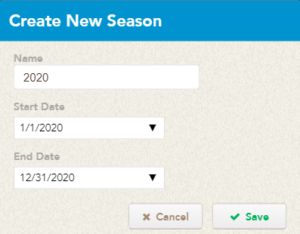
If the season does not currently exist, click the + Season button to create one. By default the start and end date match the calendar year. |
 |
| 3. Select the types of data you would like to migrate over to the new Season. | 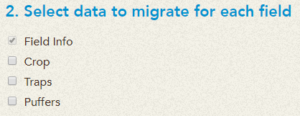 |
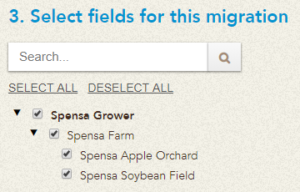
| 4. Select the Fields you would like to include in this season migration.
You can also search for by Grower, Farm, or Field name. |
 |
| 5. Once you have confirmed everything is setup the way you want it, click the Migrate button in the lower right (near the Help button). |  |
| 6. DTN AP will confirm your settings, asking you to click Yes to proceed or No to cancel. | 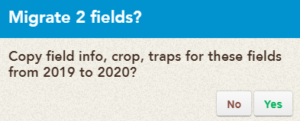 |
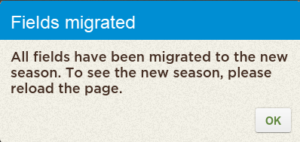
| 7. DTN AP will confirm that the migration was successful.
In order to see the changes, you will need to reload your page. |
 |