- Once you have logged into DTN AP, click on Account in the upper right hand corner

- Click on Pest Library

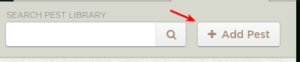
- Click on Add Pest
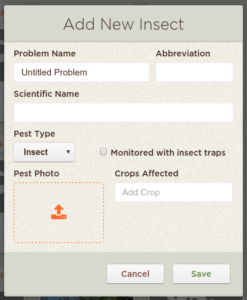
- Fill in the information for the type of observation you are adding to the Pest Library
- It is OK if you don’t know the scientific name.
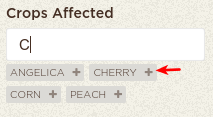
- To make the observation show up under the Crop Pest List, add the crop to the Crops Affected section.
- To do this, start typing the crop’s name
- Then click on the “+” next to the crop.
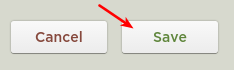
- Click Save
The observation has now been successfully added to the Pest Library. To have this new item show up in your mobile application, you will need to log out and back in.