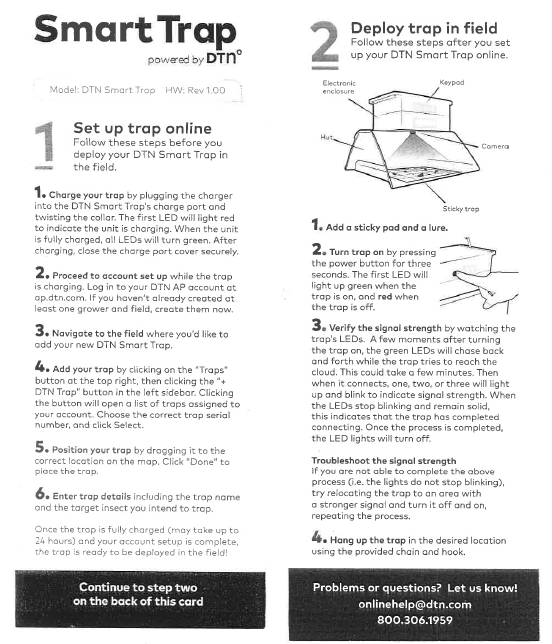
DTN Smart Trap FAQ
| If you press the power button for 1-second, the power LED will blink red if the unit is off. | 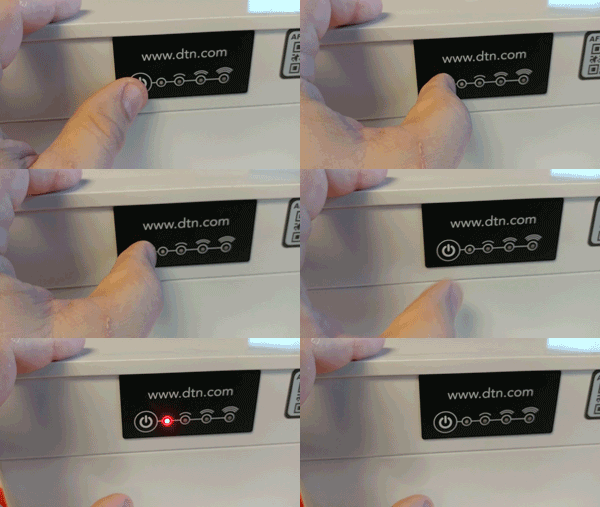 |
| If you press the power button for 1-second, the LEDs will blink green if the unit is on. | 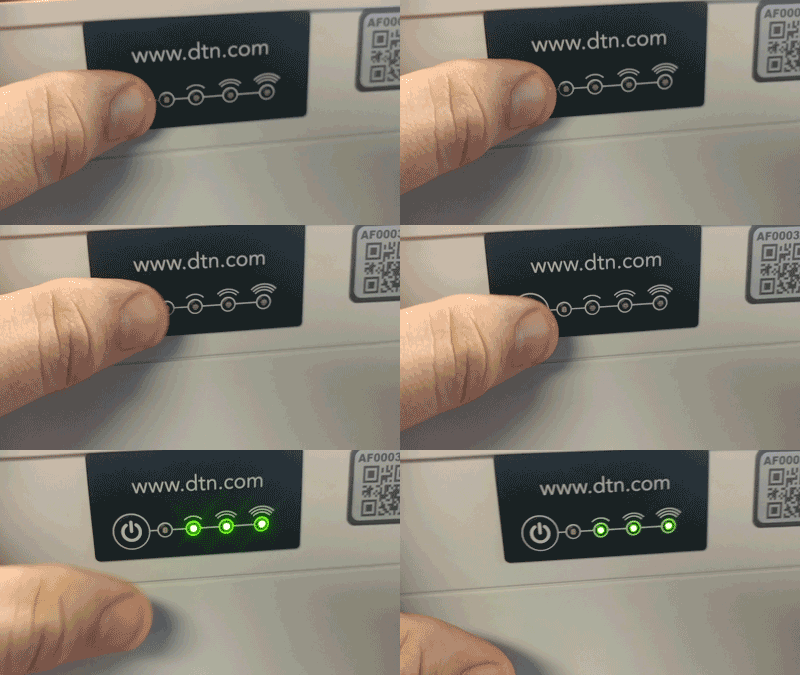 |
| You can power on the Smart Trap by pressing and holding the power button for 2-seconds. The power LED will turn green. | 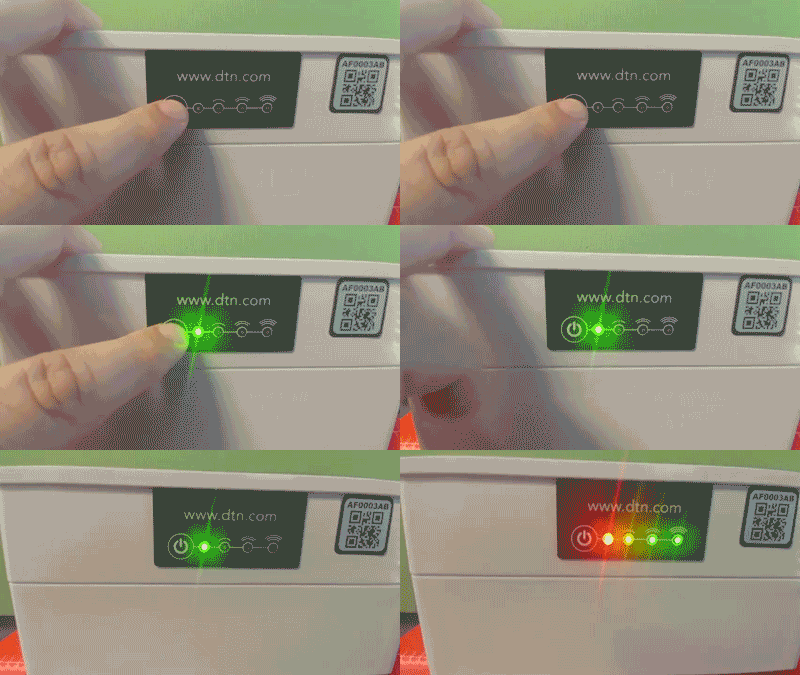 |
| While the trap is searching for a cellular signal, the three signal LEDs will “chase” each other. | 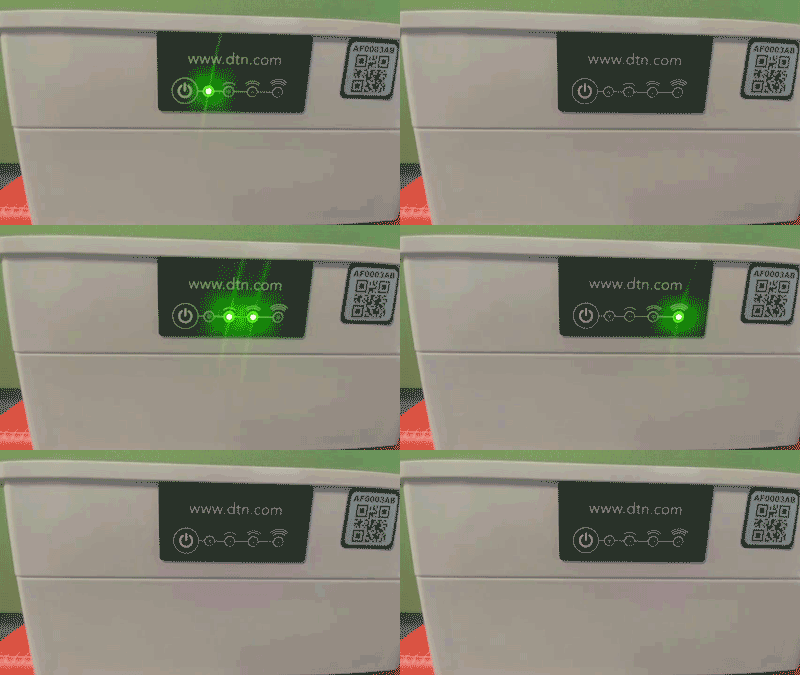 |
| Once trap has established a connection, the signal LEDs will go solid, and then turn off when the communication with our servers is complete. | 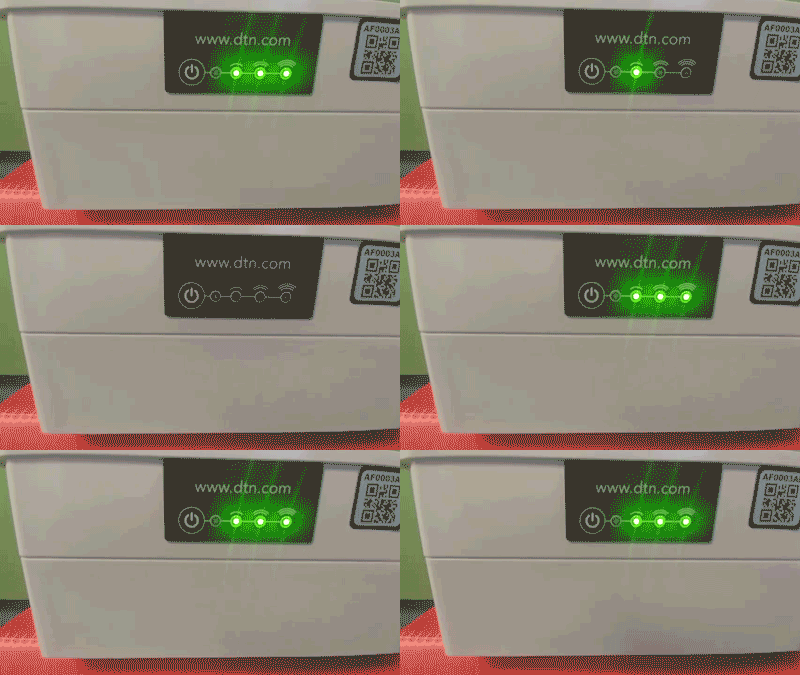 |
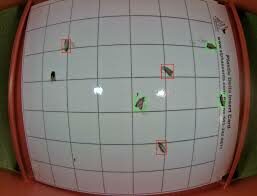
| Green | The insect was counted as a new target pest in this picture. | |||||||||||||||||||||||||||||||||||||||||||||||||||||||||||||||||||||||||||||||||||||||||||||||||||
| Red | The insect was counted in a previous picture as the target pest. | |||||||||||||||||||||||||||||||||||||||||||||||||||||||||||||||||||||||||||||||||||||||||||||||||||
In this example, three moths were detected in this picture and three moths were detected in previous pictures. The total count for today is 3 and the total count for this card is 6.
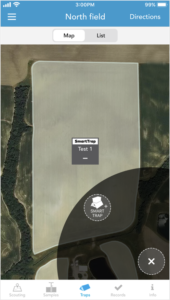
Open the AP mobile app and select a field, if one is not already selected.
- Select the Traps tab at the bottom
- Tap the + button in the lower right
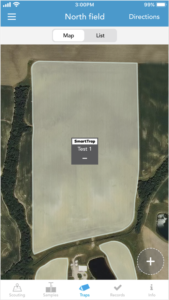
- Tap the + Smart Trap button that appears
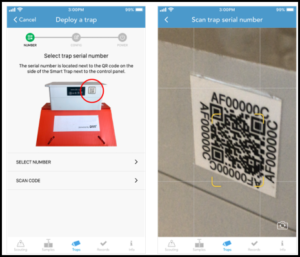
- Scan or search for the serial number of the trap you are deploying
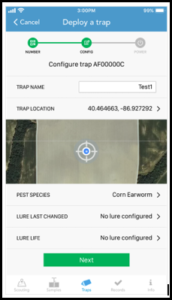
- Name the trap, adjust the location (if needed), select species, and configure lure.
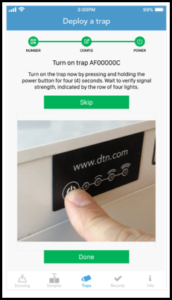
- When prompted, turn off the Smart Trap by holding down the power button for 4 seconds.
- The lights should begin to chase back and forth in search of a signal and will eventually light solid indicating the acquired signal strength.
- The lights will then turn off and you can tap Done.
- Verify the app indicates the trap has connected. If the gray bar states “Trap has not yet been heard”, try tapping Refresh to check again.
- Once the status is indicated, with a strong signal and battery, you can walk away from the field.
If the app does not indicate recent trap connectivity and you have cell reception on your device, please contact DTN support with your serial number handy.
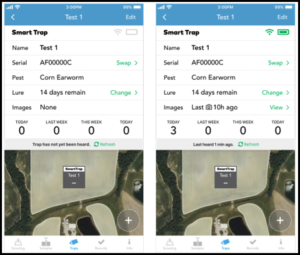
Before deploying, make sure your Smart Trap is charged completely and the trap is currently off.
| How do I know if my trap is on or off?
Press the power button for a moment:
To turn off the trap, press and hold the power button for 3-seconds. |
Press and hold the power button for 3-seconds to power on the Smart Trap. The three network LEDs will blink and begin to “chase” each other. The trap is current looking for a cellular signal.
The three network LEDs will blink and begin to chase each other. The trap is current looking for a cellular signal.
One, two, or three LEDs will light up, indicating the signal strength during the deployment. When the LEDs stop blinking, this means that the trap has connected to DTN’s servers and is working correctly. After this connecting is complete, the LEDs turn off.
You can confirm the deployment from inside your mobile application by navigating the field the trap is deployed in and seeing it listed under the Trapping section.
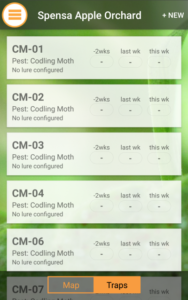
If you are unsure if the GPS signal in the area is of good quality, you can manually place the Smart Trap from the web interface.
| If your trap shows a blinking red LED, you will need to unplug your charger, wait 10 seconds, and plug in the charger again in order for the battery to charge completely.
If, after doing this unplug/replug three times, the red LED continues to blink during the charging process, please contact s[email protected] to request a replacement trap. |
To charge your Smart Trap, plug in the provided charger into the charging port located on the side of the unit. The power LED will turn red to indicate that it is charging.
When the trap is fully charged, all of the LEDs will turn green.
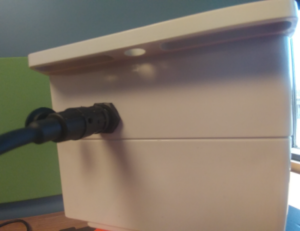
After charging, make sure you remove the power plug and close the charge port cover securely.

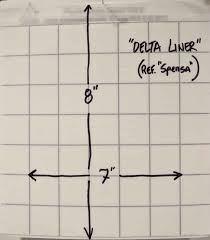
Below is a list of sticky cards we have tested with our Smart Trap and Sentinel trap:
- Trécé® -PHEROCON® VI liner
- Scentry – LPD liner
- AlphaScents – Plastic Delta Trap liner
Trécé and PHEROCON are Registered Trademarks of Trécé Incorporated, Adair, OK USA
Yes. A pheromone lure must be inserted in the Smart Trap, Sentinel and Z-Trap to attract the target insects.
Any kind of pheromone lure can be used. The Smart Trap, Sentinel and Z-Trap utilize the same type of lure used with other insect monitoring traps.
You can purchase the pheromone lure from a supplier on the Internet.
Yes. When you purchase a Smart Trap, one complimentary Field Work license to our DTN Agronomic Platform is included in the package.
If you need additional licenses, each one can be purchased through your sales representative.
No. In most cases the Smart Trap batteries will last the entire season.
Under common monitoring conditions we expect a fully charged Sentinel and Z-Trap batteries to last approximately six to eight months. In most cases, you should only need to charge the batteries at the beginning of the season.
The exact length of time varies trap to trap and is based on the monitoring schedule and the quality of the cellular communication.
Recharging
If recharging does become necessary, you can connect the Smart Trap to the provided DC adapter for approximately 24 hours and the trap will be ready to operate again.
Replacement
The Smart Trap batteries are integrated and cannot be replaced by the end-user. If service is needed, please contact us for support:
| [email protected] | |
| Phone | 800.779.7299 |
End of Season Procedures
At the end of the Season you can store your DTN Smart Trap so you can use it the next season. Just follow the Storage Instructions below.
If your DTN Smart trap is not working properly or you are not renewing for next season, see “How do I return my DTN Smart Trap” in the accordion section below.
Keeping and Storing Your DTN Smart Trap
- Take your trap out of the field
- Turn your trap off – Press and hold for 4 seconds
- Clean your trap unit – Remove the sticky card and lure
- Fully charge your trap overnight (24-48 hrs)
- Store your trap out of the elements – 50º or warmer
At the end of the Season you can store your DTN Smart Trap so you can use it the next season. See “How do I store my DTN Smart Trap until next season” in the accordion section above for Storage Instructions.
If your DTN Smart trap is not working properly or you are not renewing for next season, use the following steps to return your Smart Trap.
Returning Your DTN Smart Trap
- Take your trap out of the field
- Turn your trap off – Press and hold for 4 seconds
- Clean your trap unit – Remove the sticky card and lure
- Pack the trap in the original box or a box that can hole:
- Power Charger
- Hanging Harness
- Carabiners
- Hanging Hook
- The Trap itself
- Packing Material
- Print the FedEx return label and tap to the box
- Return Shipping Address:
- DTN Warehouse
- 10651 Chandler Road
- Suite 109
- La Vista, NE 68128
- Return Shipping Address:
Tutorials and Common Tasks