We have now added the ability to add fields via the iOS app. You will need to be online with an active Internet connection for this feature to work.
| 1. Click on the + Add a Field button from the Grower list. | 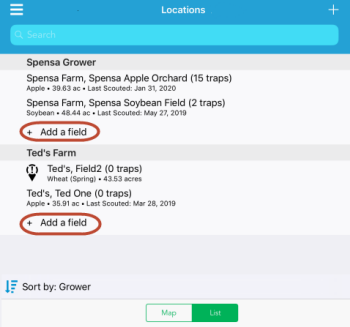 |
| 2. Fill out as much of the information as you can for the new field.
To add new information, click the pencil icon next to each field to edit. |
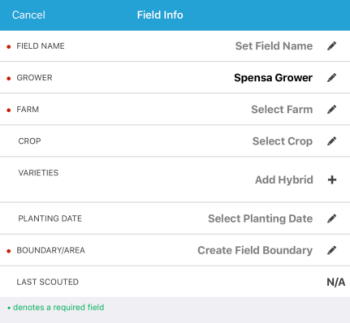 |
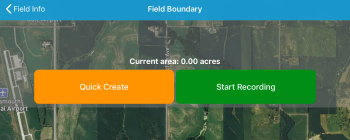
| 3. When you are ready to create the field boundary, click the pencil icon for Boundary/Area
You will have two options to create a new field, Quick Create and Start Recording
|
 |
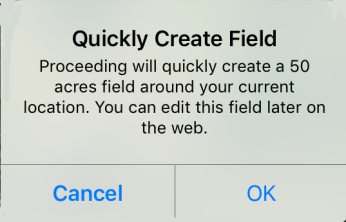
| 4. After clicking the Quick Create button, you will receive the notification that a 50 acre field will be created around your current GPS location.
You can edit this later via the web app. |
 |
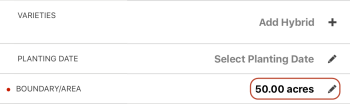
| 5. After creating the field boundary, you will see 50.00 acres listed under the Boundary/Area section
Once you are ready, click the Save button and the new field will be created with the information you specified |
 |
| 6. Once the Field is done saving, you will land on the field, ready to start scouting or trapping. | 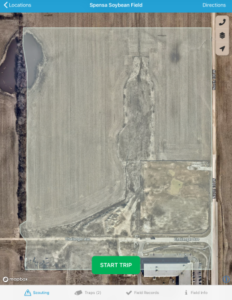 |
ersion.