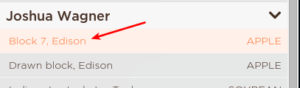
- Navigate to the field you want to add a trap to.
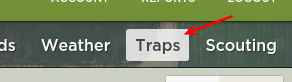
- From the Tool Bar, click on Traps.
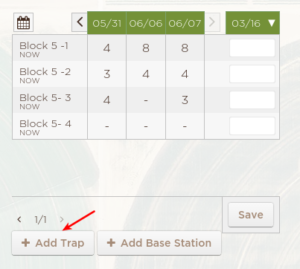
- From the Sidebar, Click on Add Trap.
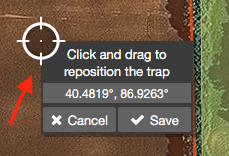
- Drag the location icon to the place the trap in the correct location.
- The coordinates will be displayed to help provide exact locations.
- Once the trap is in the correct location, click on Save.
- Update the trap information as needed.
- You can give your trap a special name (e.g. Block 5-1) in the field labeled New Trap.
- You can specify the insect you are trapping via the drop-down menu (default is ASB).

You have successfully added a trap to the field. The next trap you place will remember the previous trap’s pest, so you can add all of your navel orange worm at once without having to select NOW each time you add a new trap.
The trap information is saved as you go in the web app.